Networking hell in my homelab
Jonathan Chao 9/30/26
To be honest, for week 5, I don’t have a lot to write about individually since so much work was done with everyone present. I worked on the router, uploading the update file to the router through an ethernet cable and setting the ip address of our personal laptop to the 192.168.1.2 ip address.
We had some immediate issues with ethernet and wifi drivers, but luckily those were resolved quickly. We also had issues with ethernet ip configurations, but these problems could also be solved by assigning hard ip addresses and pinging to see what the laptop was able to connect to. We were able to get into ddwrt this way, assigning an ip address for the ethernet connection that was on the same subnet as the web management interface.
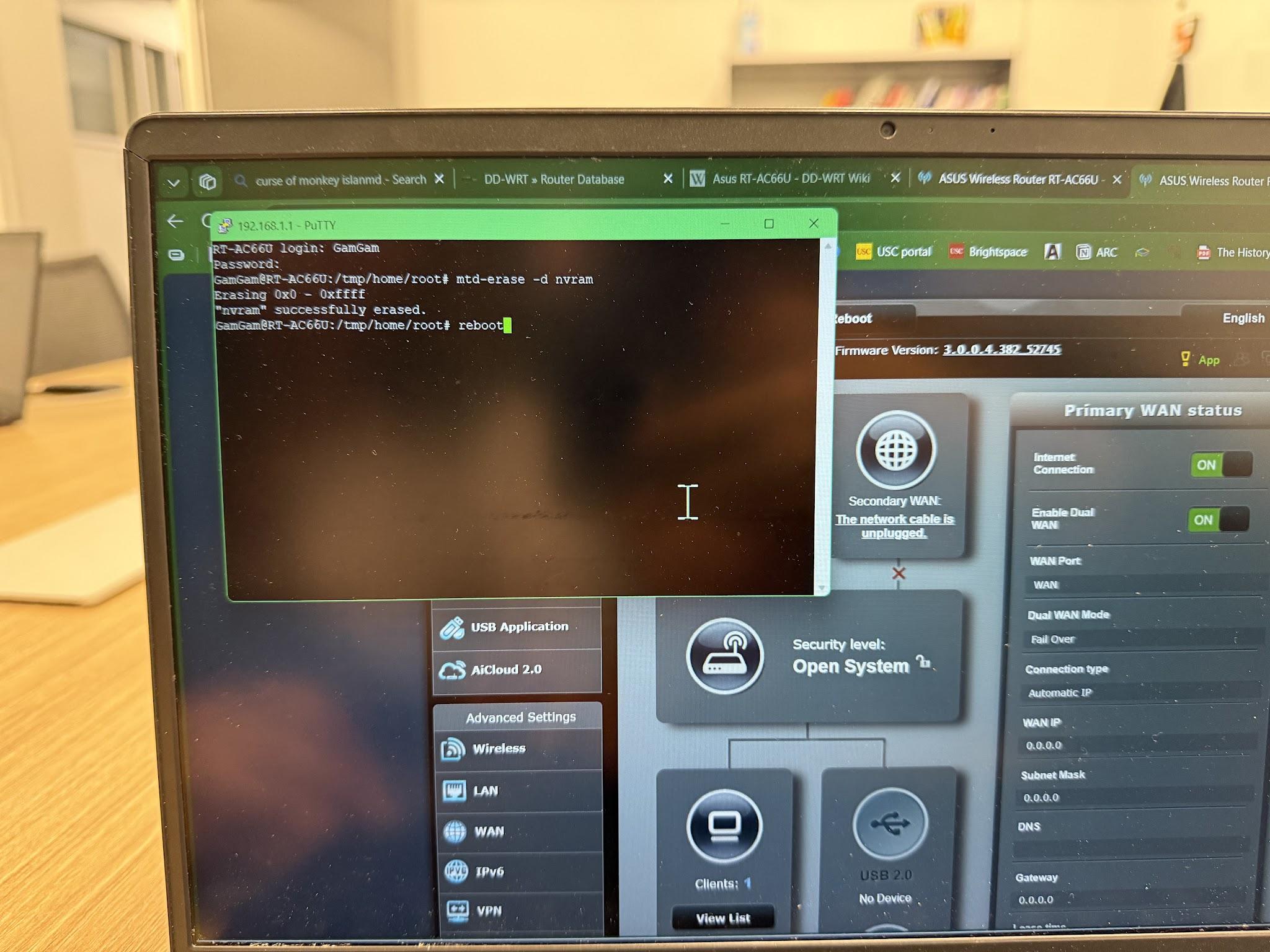
I also worked on opnsense for the longest time, fixing network bridges and messing with kea DHCP through the web interface for opensense along with proxmox.
On the top is the PuTTY window with the telnet connection to the router, showing that the router and the computer can communicate with one another. These were communicating on the 100.1/24 subnet through a ethernet cable.
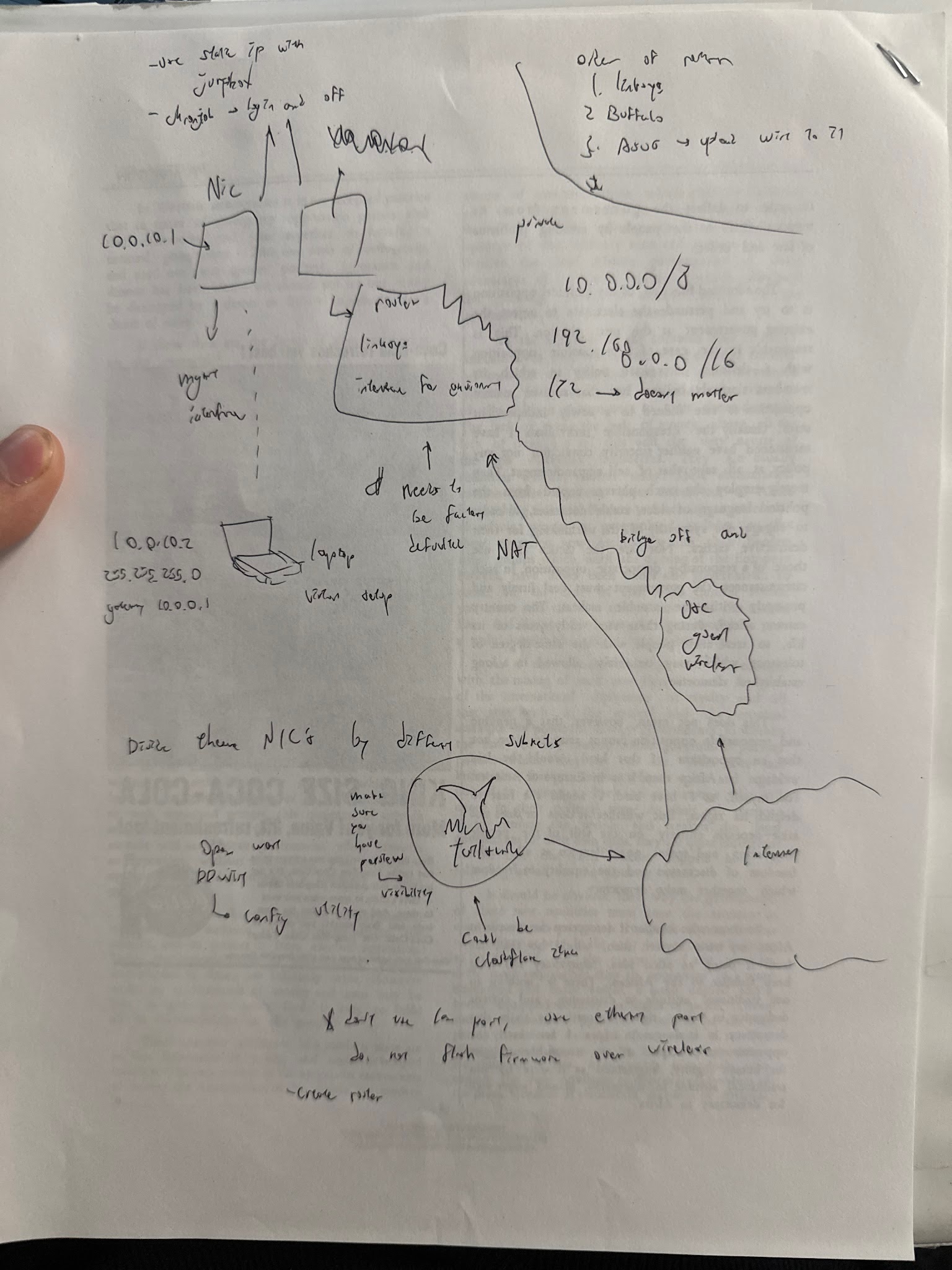
On the next page is the network diagram I used to base the subnets off of. It is honestly not very useful as I was just trying to figure out why certain devices couldn’t communicate (ping) other devices on the network.
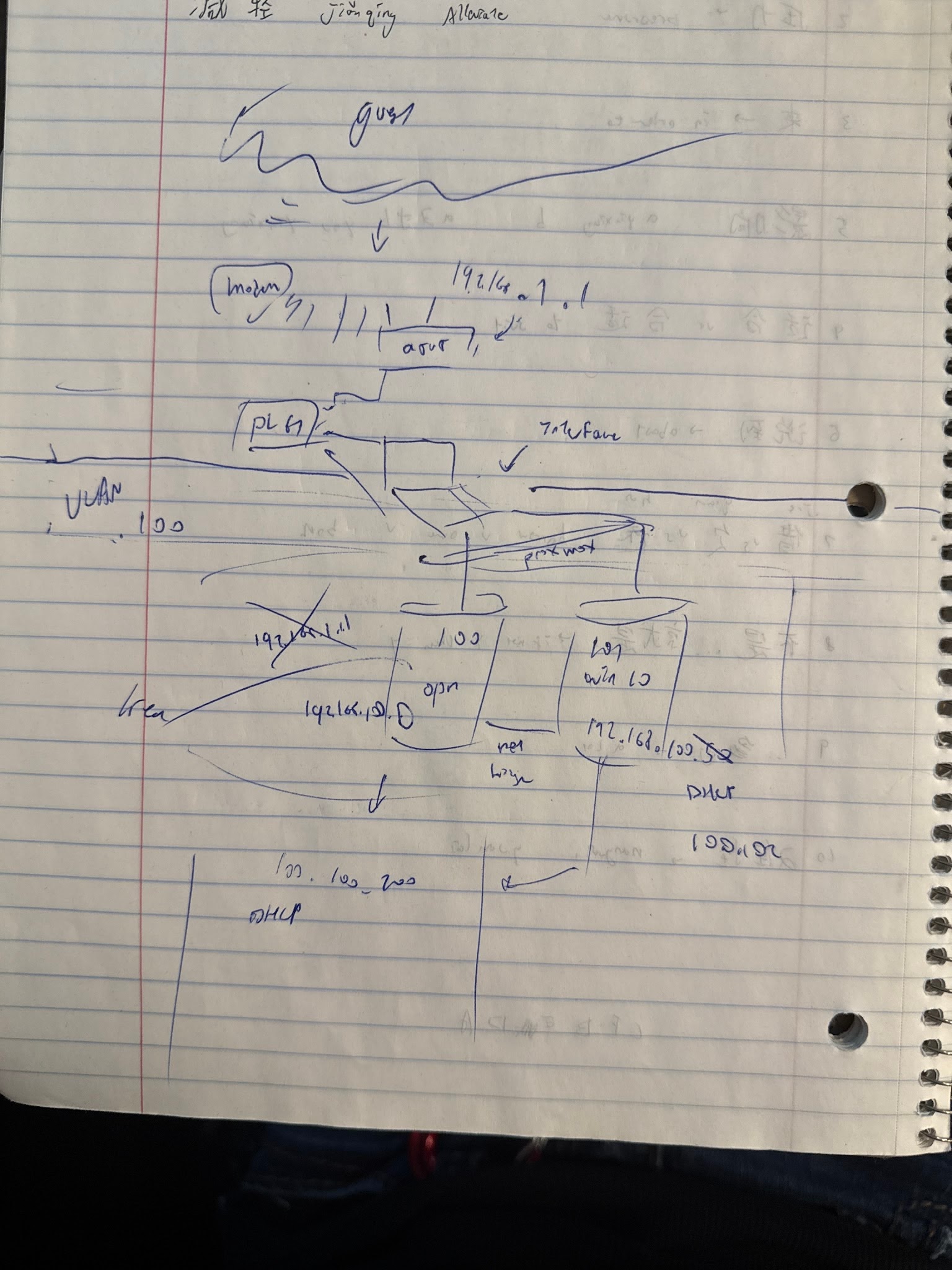
This diagram demonstrates the .100.x subnet I used, which allows the VMs to communicate with each other through a LAN connection facilitated through a network bridge.
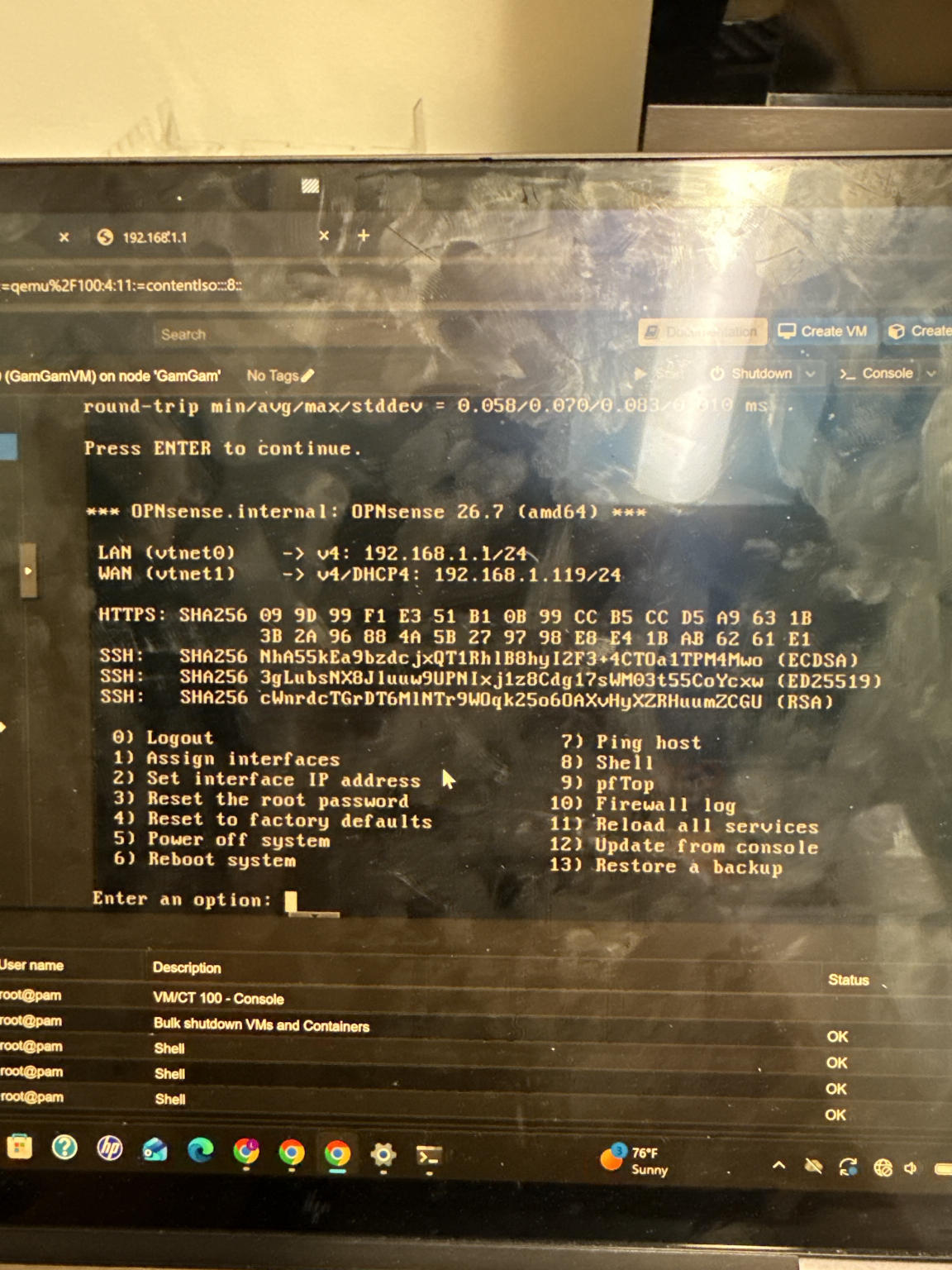
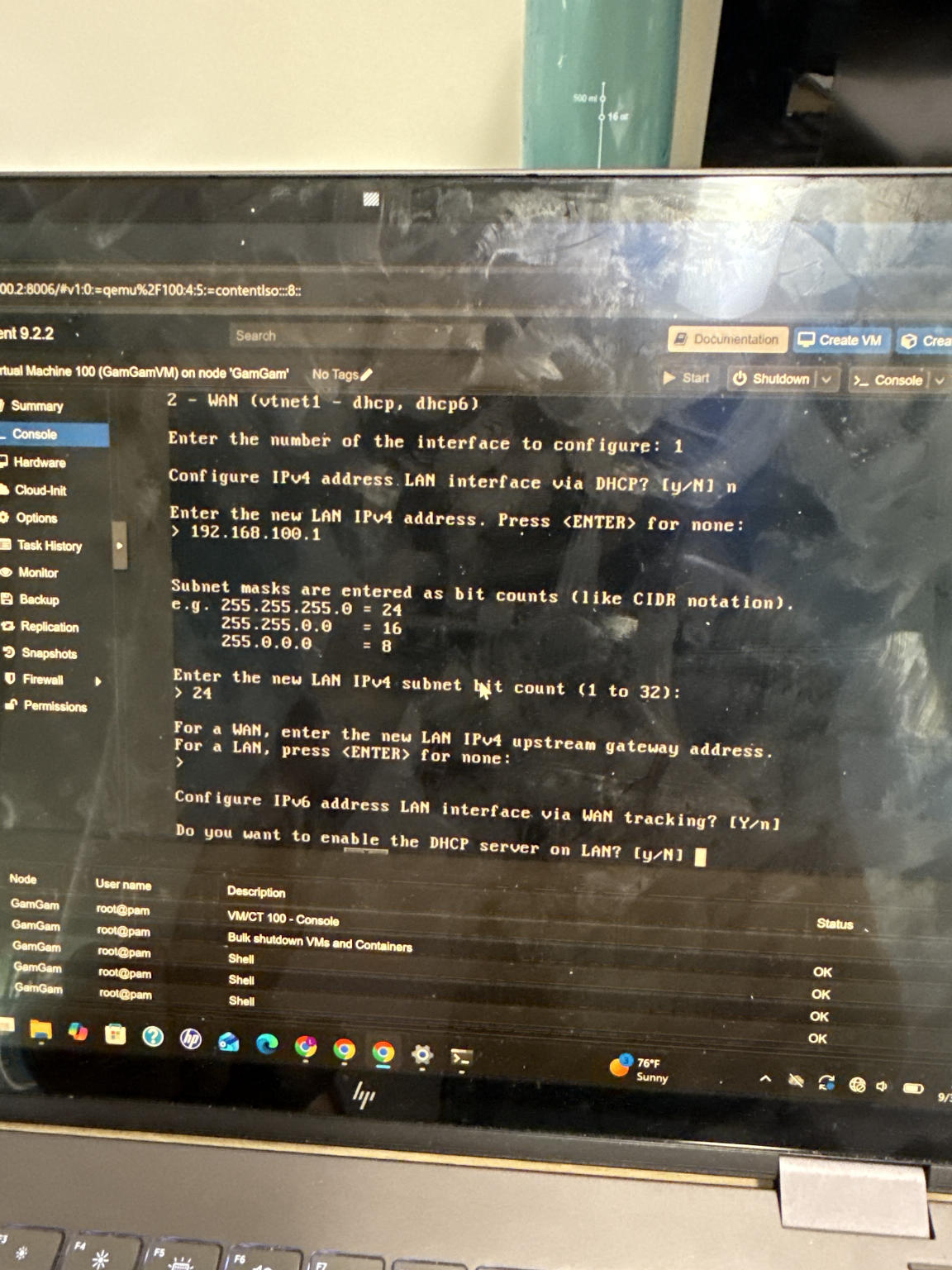
Using the opnsense cli through proxmox to configure the lan interface, which was connected to the windows 10 vm through a network connection facilitated by proxmox.
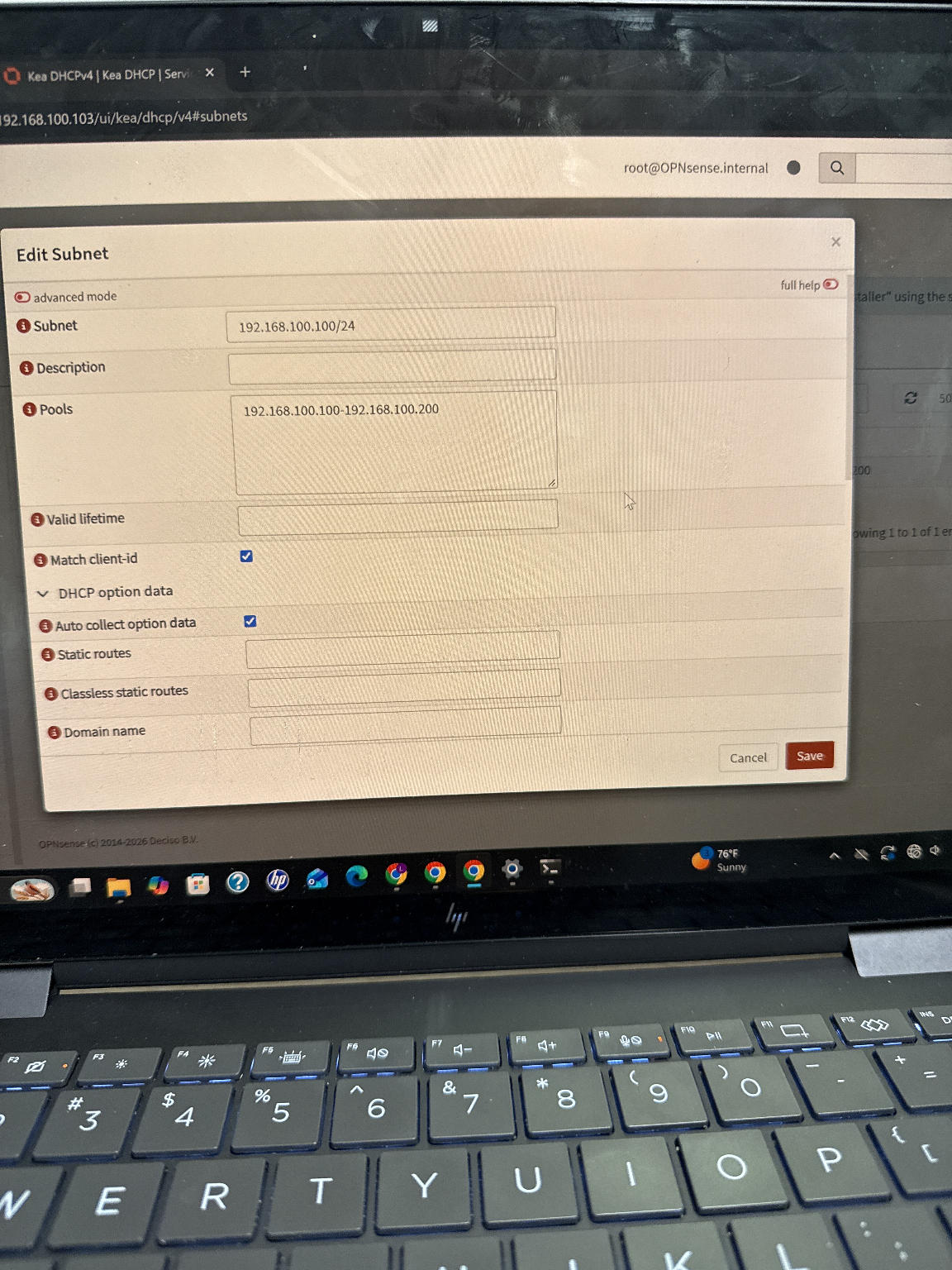
configuring the DHCP subnet and subnet pool through the opnsense web interface.
One problem I ran into early was a misconfiguration of network buses and subnets. I had to switch the devices to the same .100 subnet and regularly debug with pings.
I would also run into an issue with IPs where opnsense would be migrated back and forth between different gateway addresses as I reconfigured DHCP over and over. At one point the opnsense was configured at 100.103 instead of 100.1 and I had to refind the ip to access the web interface and change it back. Luckily I never ran into an issue where I moved the proxmox ip and lost connection to the server.
To resolve the persistent gateway distribution errors, I adjusted the Kea DHCP configuration in OPNsense to use the proper subnet boundary and defined the address pool correctly. This ensured that the Windows virtual machine automatically leased a valid IP address and aligned with the correct router gateway.
“Kea is an open source implementation of the Dynamic Host Configuration Protocol (DHCP) servers, developed and maintained by Internet Systems Consortium (ISC).”
Kea Administrator Reference Manual — Kea 3.2.1 documentation
I’m still not sure if Kea was ever necessary for this part of the project, but it did allow for very good control of a DHCP pool for assigning IP addresses.
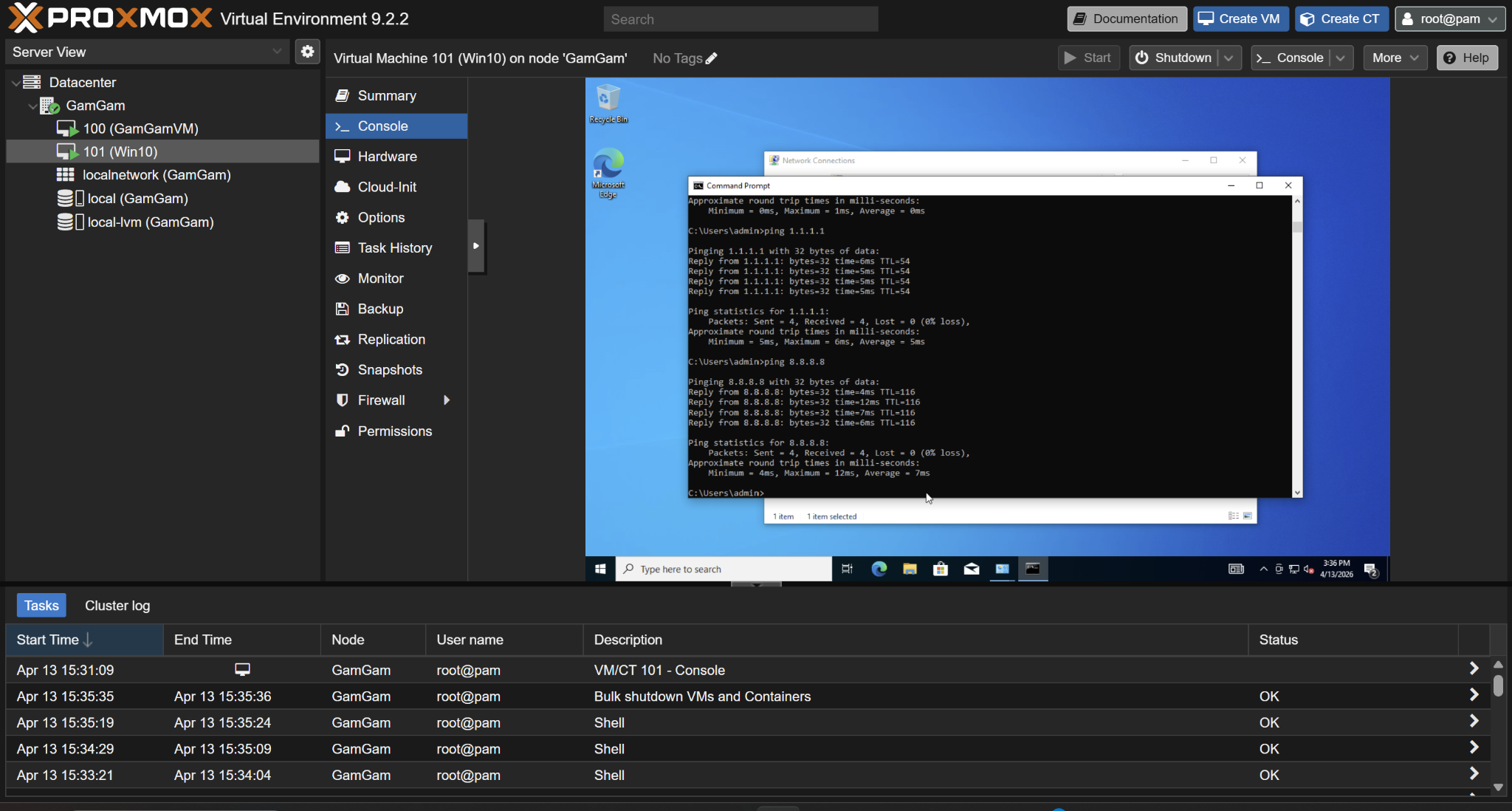
We are able to ping google in the windows 10 vm through assigning a static ip to the windows server and defining the gateway ip. I am not using DHCP to lease an ip address in this photo as I have assigned a static address for the windows box after consulting with a classmate. I was told DHCP would be useful for other devices, but not necessary for the windows and opnsense.
I think we might still have to assign a DNS server and also install Tailscale, so those will be done next week!
Network Diagram
Conclusion
To set up the environment, we created a Windows 10 virtual machine from an official Microsoft .iso and an OPNsense virtual machine on the Proxmox hypervisor. Initial connection attempts failed because the virtual network bridges and subnets were misconfigured, which isolated the Windows guest from the router. I resolved this by aligning both virtual machines to the appropriate Proxmox bridge and standardizing the local network to the .100.x subnet. Going from 192.168.1.1 to 192.168.100.1/24 allowed everything to communicate. I was able to consistently check this activity using pings.
Next, I configured the OPNsense interfaces, assigning the LAN to the internal bridge and setting the WAN interface to obtain an IP address via DHCP. To automate client addressing, I enabled the Kea DHCP server within OPNsense and defined the local subnet pool.
During testing, the virtual machine experienced gateway assignment errors and lease failures. By correcting the subnet boundary and ensuring the Kea DHCP parameters properly referenced the correct router address, the Windows virtual machine successfully acquired a valid IP configuration, verified via network pings. However, this still did not allow the Windows computer to connect to DNS, and we have yet to install Tailscale. Currently, we have configured a static IP for the server, and are ready to add DHCP to new VMs to populate the network.